![muso-logo-rgb.png]](https://supporthub.muso.com/hs-fs/hubfs/muso-logo-rgb.png?height=40&name=muso-logo-rgb.png)
Sometimes other types of content have the same name as, or a variation of the name of the copyrighted material you are monitoring. If you notice these in your search results, you can use MUSO’s advanced filters to prevent them from appearing in the future.
1. Click on 'Settings'
2. Then click on the menu item 'Search / Filter Files'
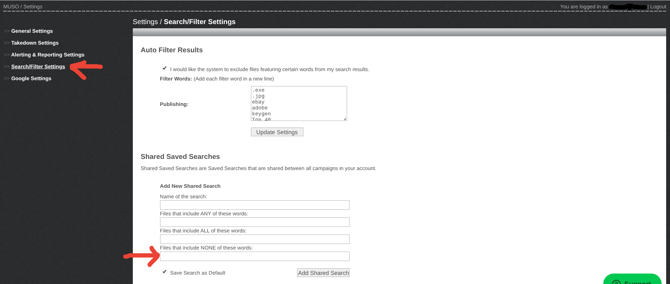
Under ‘Files that include NONE of these words’, enter the keywords solely belonging to the incorrect matches in your campaign.
Check the ‘Save This Search’ OR 'Add Shared Search' box and hit 'Search Now'. Your results will update.
Important - To enforce this filter every time you review your campaign results, click on ‘Search / Filter Files’ again, check the box next to the Saved Search you just created, and then click on 'Set Defaults' to apply this filter every time.